


[Unboxing and Hands-on Review] Raise3D E2 3D Printer: Independent Dual Printhead Printing Tutorial!
The Raise3D E2 3D printer features an independent dual printhead system (IDEX). The two printheads are completely separate and can move independently, ensuring that the nozzle paths do not interfere with each other during operation. Selecting either "Copy" or "Mirror" mode allows both printheads to work simultaneously, achieving double the efficiency and productivity in the same amount of time! Unboxing and hands-on testing in no time:
one, Hardware operation
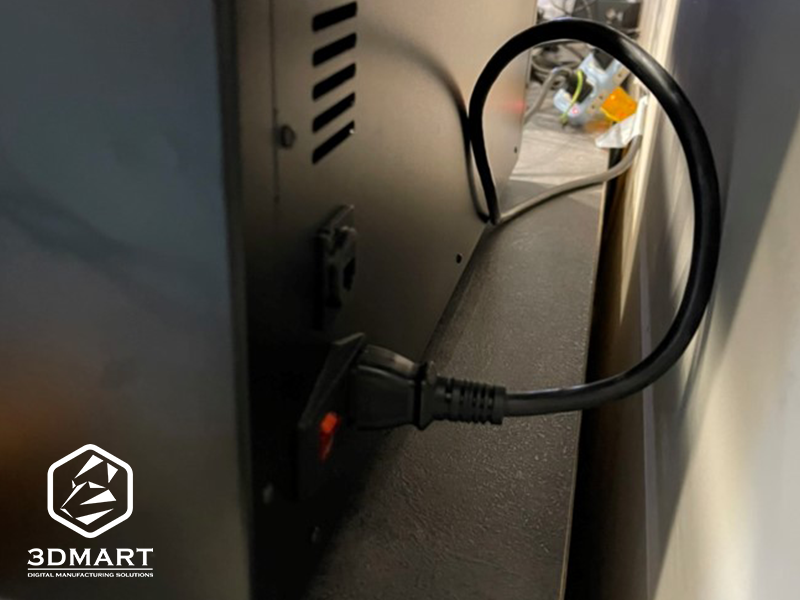
1. Plug in the power/turn on
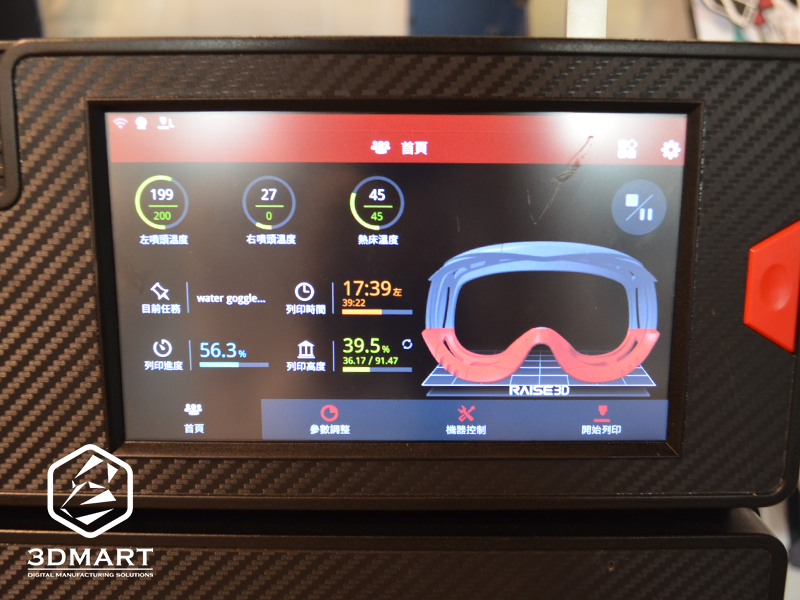
2. Boot screen
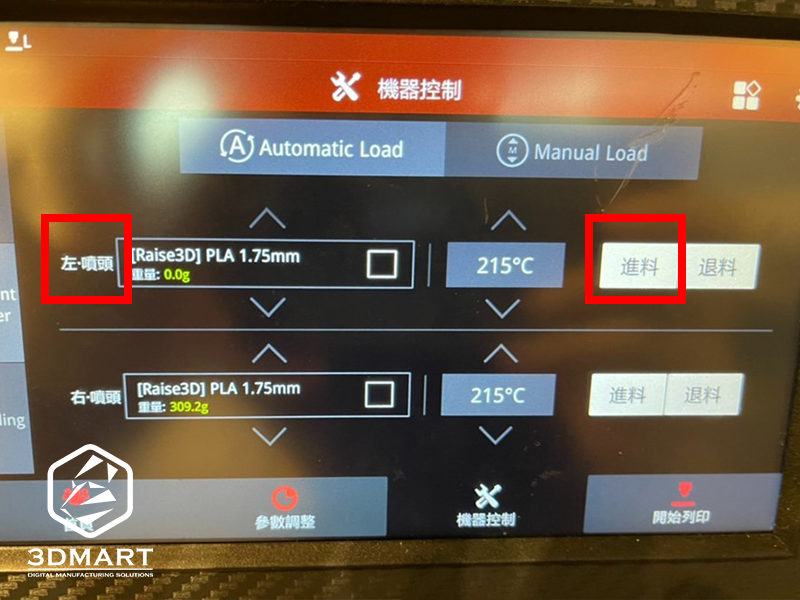
3. Click "Left Nozzle" > "Feed"
4. 3D printing wire feeding
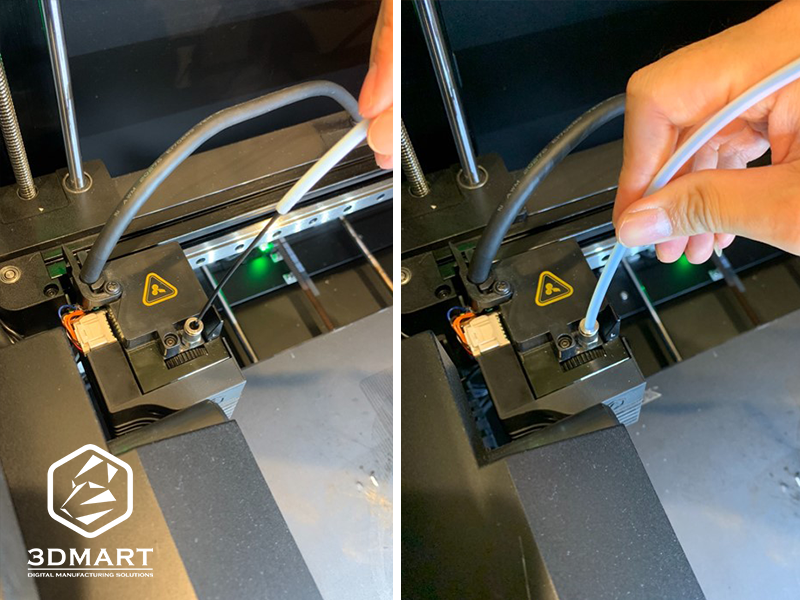
Open the material rack on the left side of the machine, align the 3D printing filament with the feed hole, press down the metal ring with one hand and pull up the feed tube with the other hand, manually thread the feed tube through, and finally select "Start Feeding".
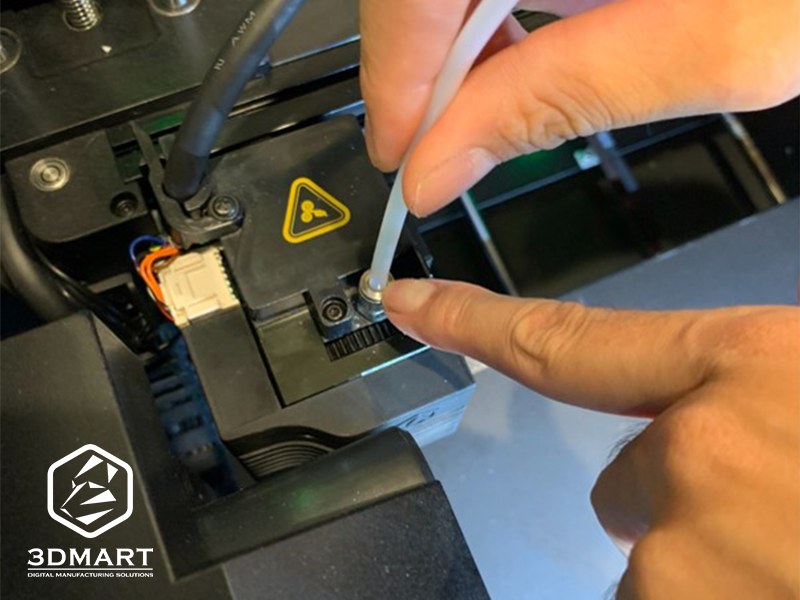
5. Return pipe
Once you confirm that the gears are running, insert the material into the throat tube. After the 3D printing filament starts feeding, reinstall the material tube back into the feed port. After confirming that the material is flowing out, the touch screen will also display "Left nozzle feeding" to complete the confirmation.
two, Software operation
Install the "ideaMaker" software specifically for the Raise3D E2 3D printer ( click here to download ).
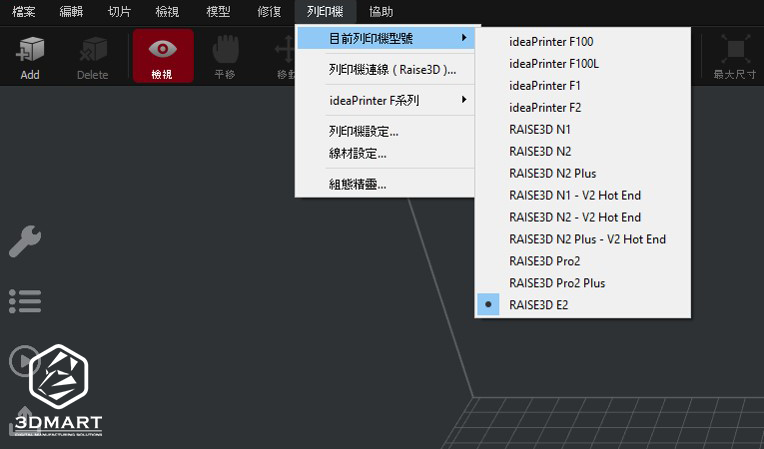
1. Select Model
Select the "Printer" toolbar and choose the model of the device you are using.
2. Import Archives
Select "Import Model" and choose the model to be printed.
3. Select nozzle
Confirming the nozzle for hardware feeding
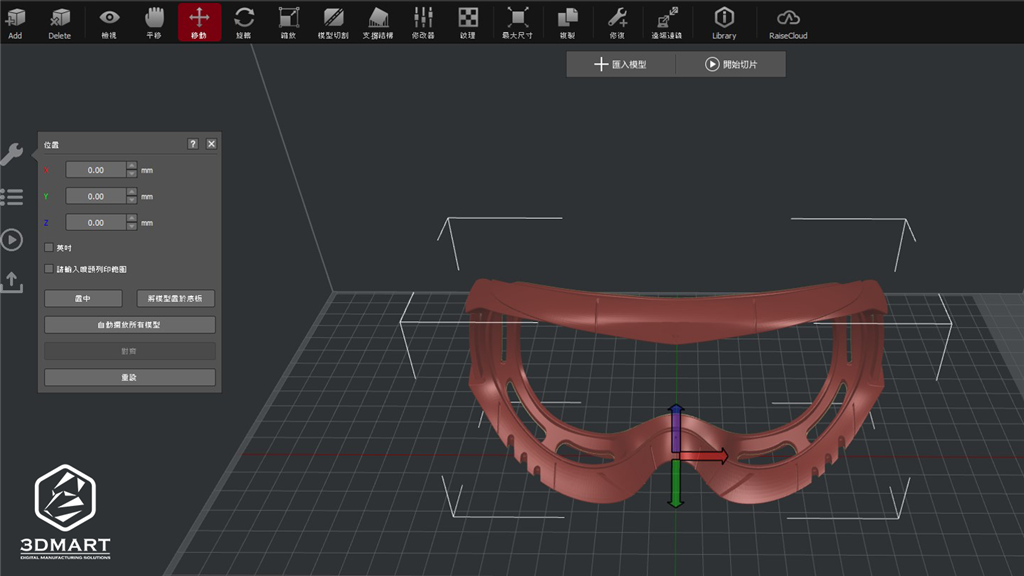
4. Adjusting the model
You can select functions such as "move", "rotate", "scale", and "cut" to edit the model file as needed.
5. Start slicing
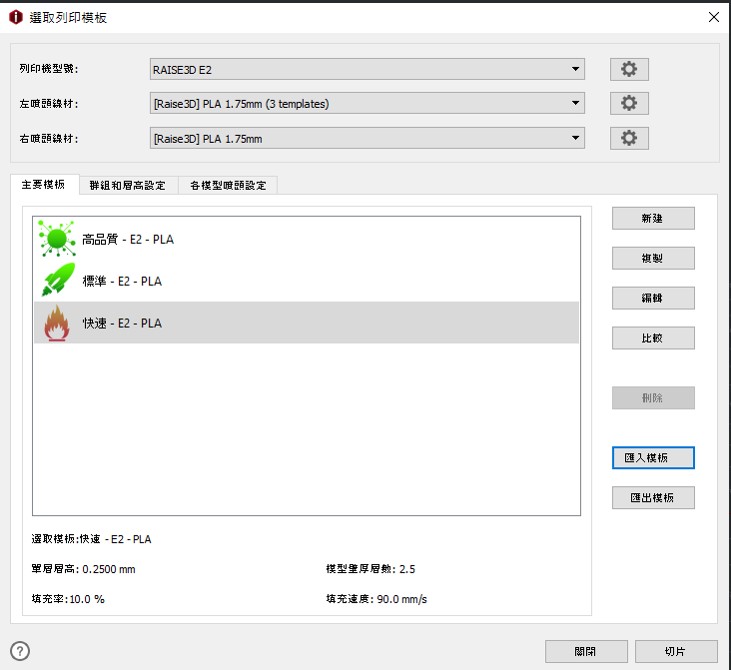
There are three default setting modes to choose from, and users can also adjust them according to their personal needs.
High-quality mode: 0.1mm layer thickness / better print quality, longer printing time.
Standard mode: Layer thickness: 0.2mm / Medium print quality, medium print time
• Fast Mode: Layer thickness 0.25 / Standard print quality / Fastest print time
6. Editing support
After selecting "Edit", enter the edit mode, select the support structure, set the support structure to "All", confirm the support nozzle, save the file, and select "Slice".
7. Start printing
Save the 3D print file to the USB drive, plug it into the device port, and select "Start Printing".
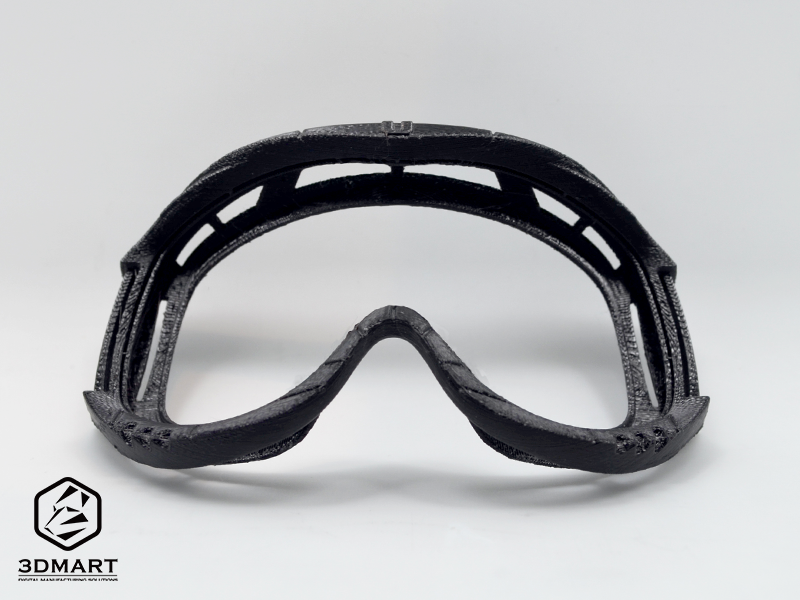
The Raise3D E2 3D printer boasts a maximum print volume of 330x240x240mm, making it ideal for small-batch production. Contact us now for more detailed information on the Raise3D series of 3D printers , or follow SanDima's YouTube channel for the latest technical equipment usage tutorials.
Follow our fan page to stay up-to-date with the latest news: https://www.facebook.com/3dmart.com.tw/