


[CNC Milling Machine Tutorial] Snapmaker with Fusion 360: 3D Model Sculpting!
3D CNC carving made easy! All cutting head options included, suitable even for beginners! Not just for 2D planar carving, Snapmaker , paired with Fusion 360 CAD modeling software, allows for industrial-grade precision design and carving of parts—much simpler than you imagine! Complete basic operation tutorial included:
In Snapmaker's three-in-one (3D printing/laser engraving/CNC milling) functions, CNC is mostly used for 2D planar engraving; but wait! Snapmaker is capable of more than that. Paired with professional Fusion 360 CAD modeling software, it can transform 2D sketches into 3D models. Learn the basic functions now:
one, Download Fusion 360 CAD software ( click here to download for free )
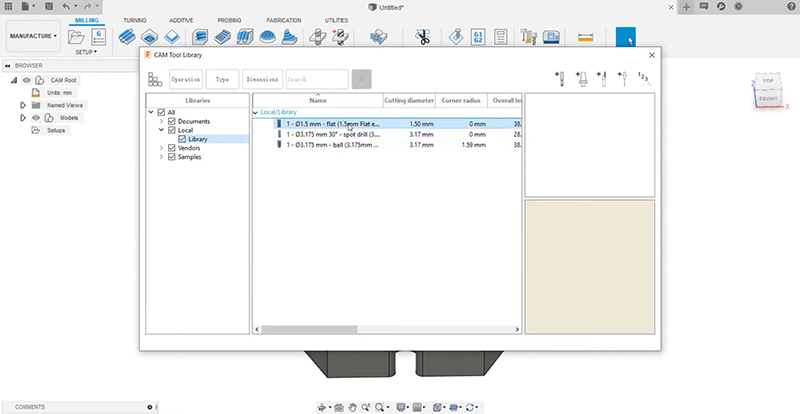
Import the Snapmaker tool configuration file into the Fusion 360 Tool Library (Manage > Tool Library). The tool library has ready-made configuration files that can be used, which can save a lot of production time compared to adding and setting them yourself.
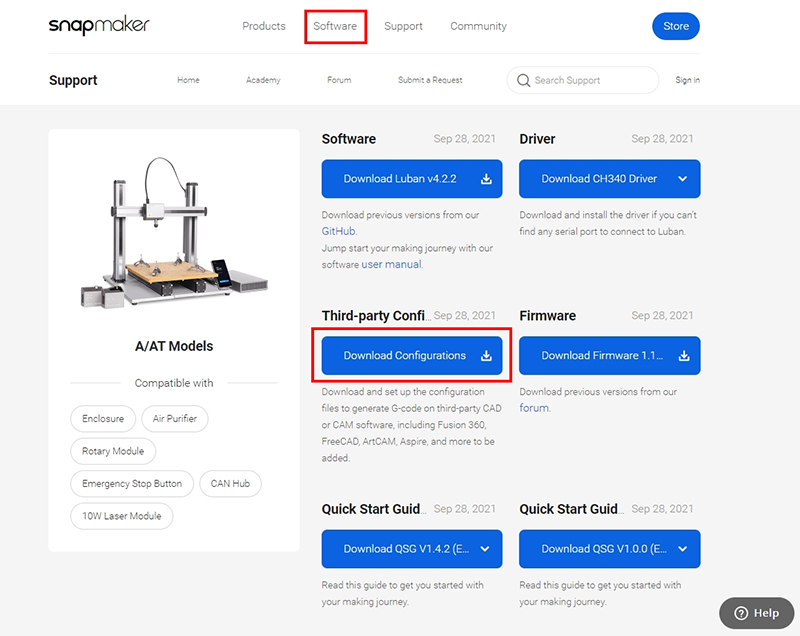
Tool Library > Local > Library > Import Tool Library, and import the corresponding file according to the tool head used.
two, Basic Operations of Fusion 360 CAD Software
1. Draw a 2D planar sketch
Draw the shape according to the requirements. If the final product is a hexagonal object, you only need to make a rough outline of the shape first. Click "Create Sketch", select the plane with the XY axis as the reference, and add a sketch.
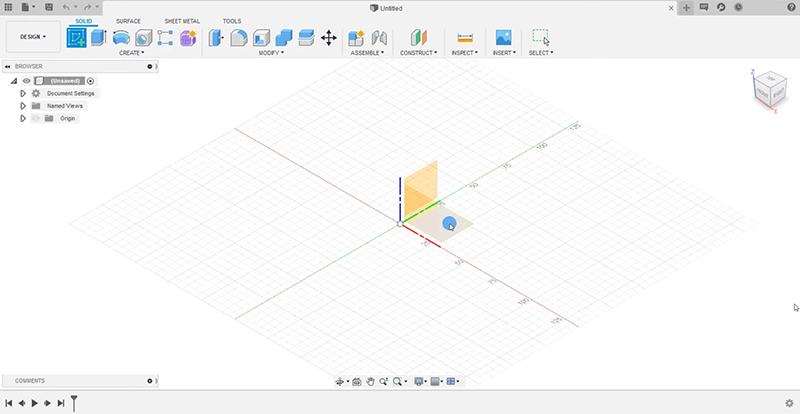
Graphic drawing function
Create dropdown menu > Polygon > Circumscribed Polygon
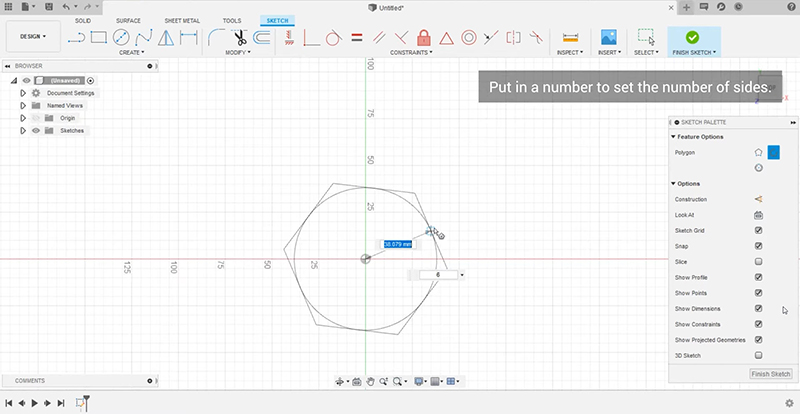
• Circle Tool: Center Diameter Circle
While drawing with the mouse, the system will display the dimensions in real time. Enter the actual required diameter.
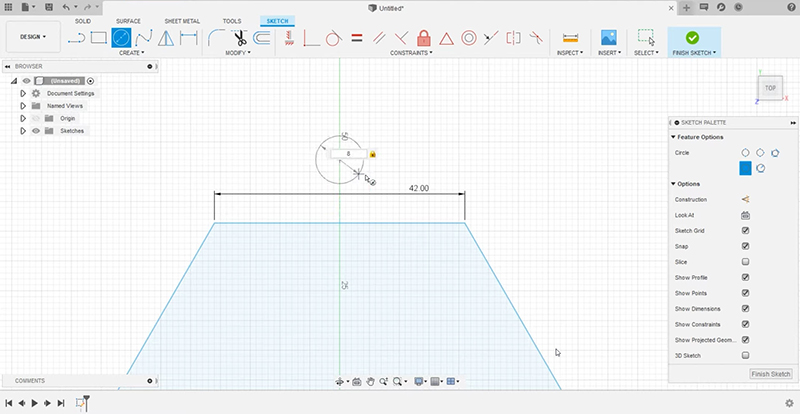
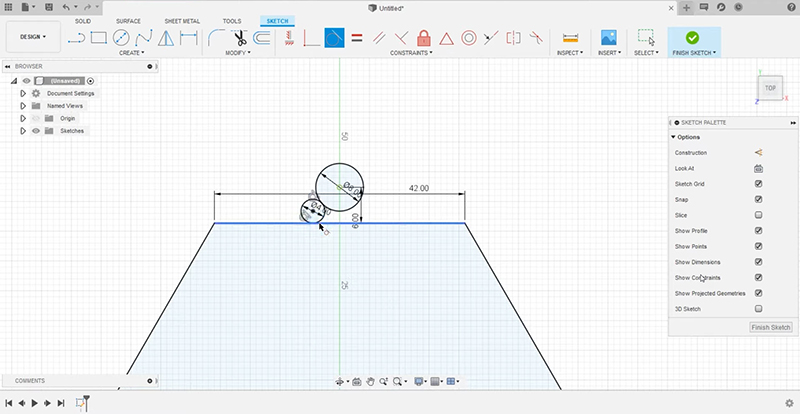
• Tangent alignment of wire diameters: Tangent
Simply select the two edges of the objects you want to be tangent to achieve precise tangency.
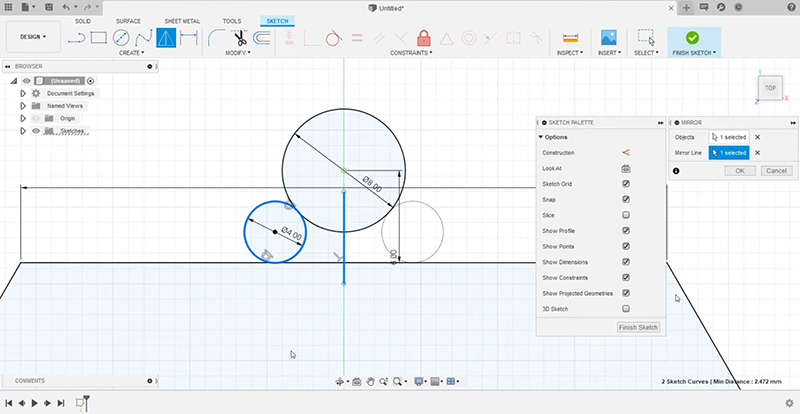
Mirroring tool: Mirror
Most industrial parts are symmetrical in shape. Once the shape of one side is set, the mirror tool can be used directly to save repetitive operations and speed up work efficiency.
Trim tool
After creating tangent shapes to achieve the desired form, the trimming tool can be used to directly delete unwanted edges.
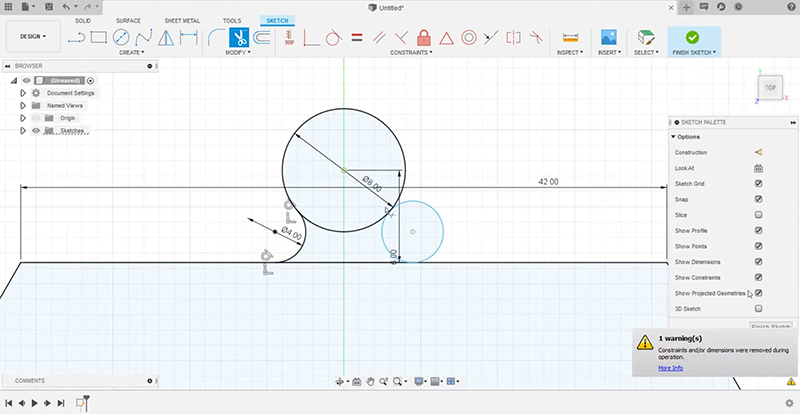
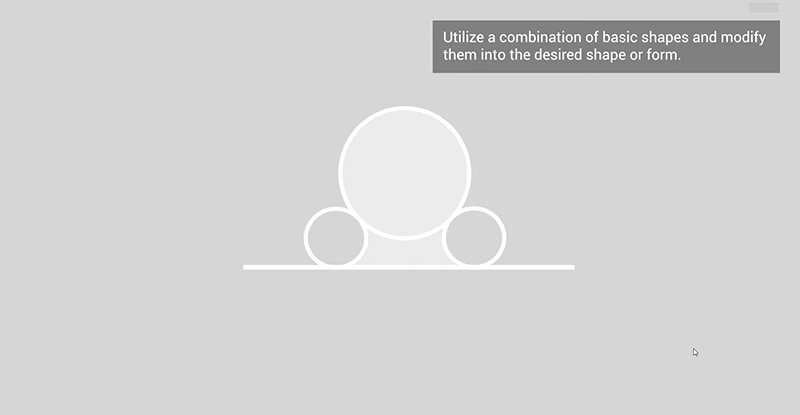
Customized carving designs cannot be obtained from ready-made designs in the software with a single click. They require combining basic shapes to create the desired object shape.
2. Generate 3D stereoscopic models
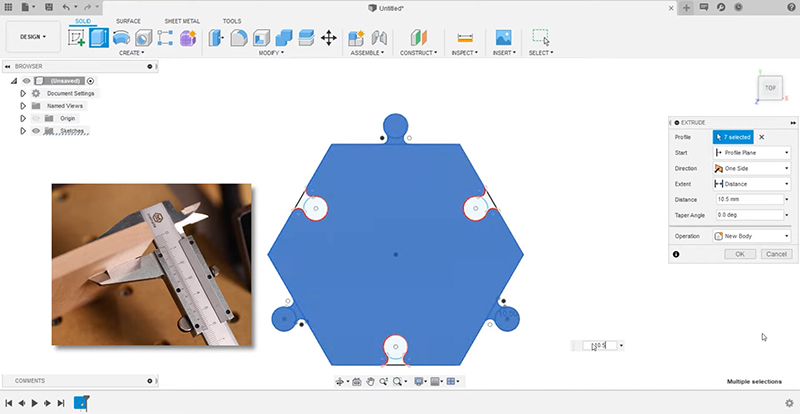
Select all the planar shapes of the objects in the sketch, select the "Extrude" tool, and enter the actual thickness of the material to be processed (Tip: To ensure that the material can be cut perfectly, you can enter a value that is slightly larger than the actual thickness of the material; using the same principle, you can draw other planar shapes on 3D objects and grow or concave them into 3D structures).
3. Enter tool configuration file
Import the corresponding file based on the tool head being used (Tool Library > Local > Library > Import Tool Library).
4. Set coordinates/origin
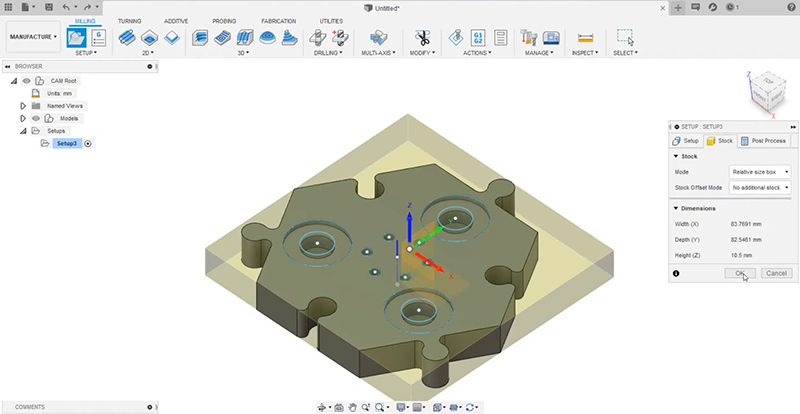
• Add settings > Setup
In the right-hand menu, select Orientation > Select Z axis / plane & X axis, and confirm that the Z-axis of the model and the Z-axis of the coordinates in the software are aligned, and ensure that the sculpted surface of the model is facing upwards.
5. 2D contour cutting
2D > 2D Pocket > Right-hand menu "Tool" > Select tool type
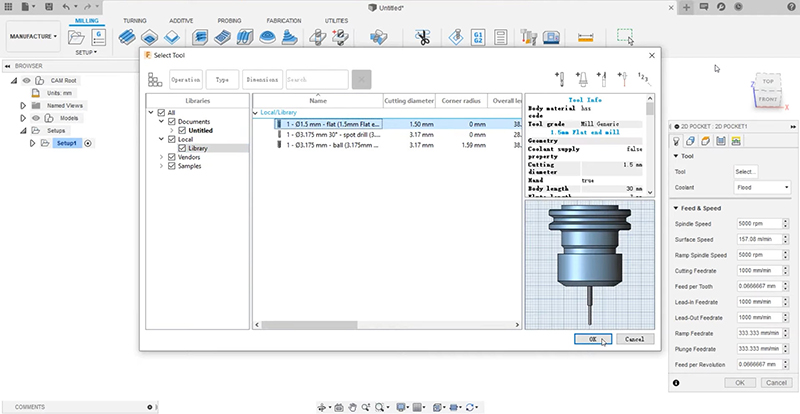
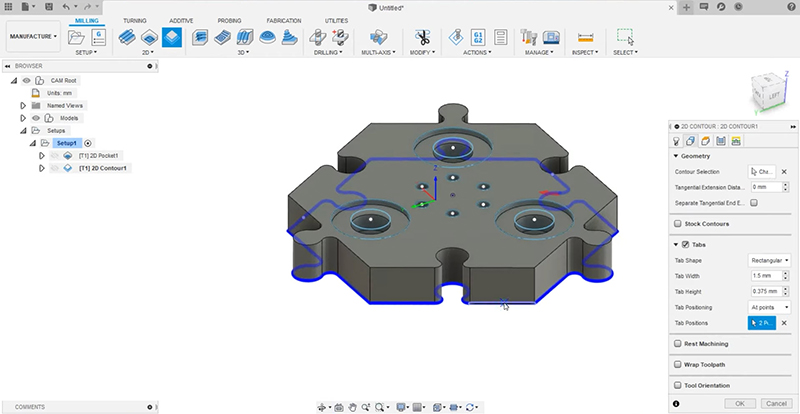
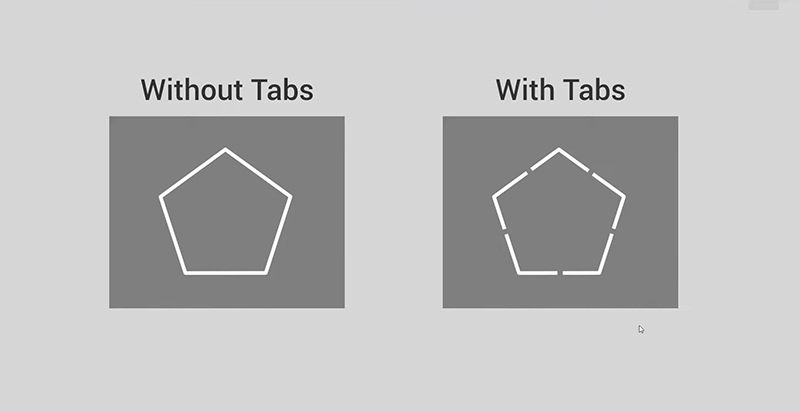
To prevent cut-out parts from moving around in the work area and affecting other structures being sculpted, select the "Tabs" function in the right-hand toolbar to keep the parts fixed during processing. (Tabs > Tab Positioning > At points > Manually set using the mouse on the bottom outline of the model)
three, Preview CNC milling path
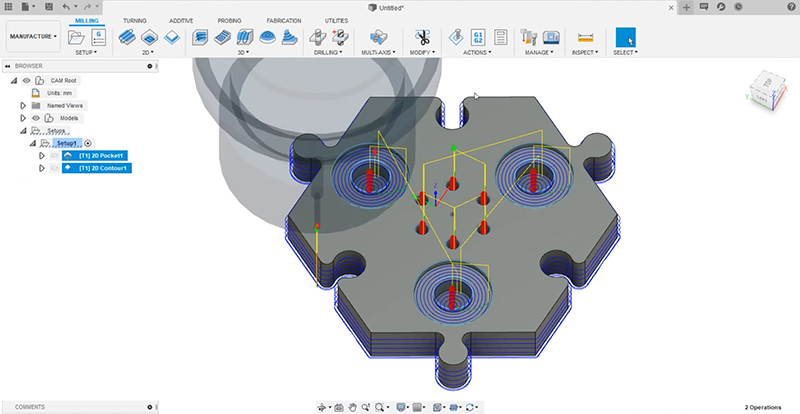
Press the "Ctrl" key on your keyboard, select all the configuration files, then select "Action" > "Post Process" in the toolbar to save the CNC machining path (G-code) and prepare to start engraving.
Ready to upgrade your Snapmaker CNC milling machine's processing capabilities? Snapmaker offers more than just 3D printing . Contact us now to learn more about the full range of Snapmaker 3-in-1 3D printers ( Click here to see: [CNC Milling Machine] Snapmaker Rotary Axis Full Tutorial, Easily Engraving 1mm Hollow Spirals! ).
Follow our fan page to stay up-to-date with the latest news: https://www.facebook.com/3dmart.com.tw/