


[Document Scanning Tutorial] CZUR scans books for digitization, eliminating the need to type them out word by word for archiving!
Digitizing books and documents eliminates the need for word-by-word typing for archiving? Whether it's a household registration office, archive, library, police station, school, or tutoring center, there are all sorts of important documents that need to be digitized daily. Scanning with a conventional photocopier is prone to errors, and word-by-word transcription is extremely time-consuming. And what if your boss needs it before they leave work? CZUR has the answer! Their intelligent document scanner features page-turning detection, automatic page turning, and AI-powered document curvature flattening. The scanning method is incredibly simple. See below for a complete tutorial:
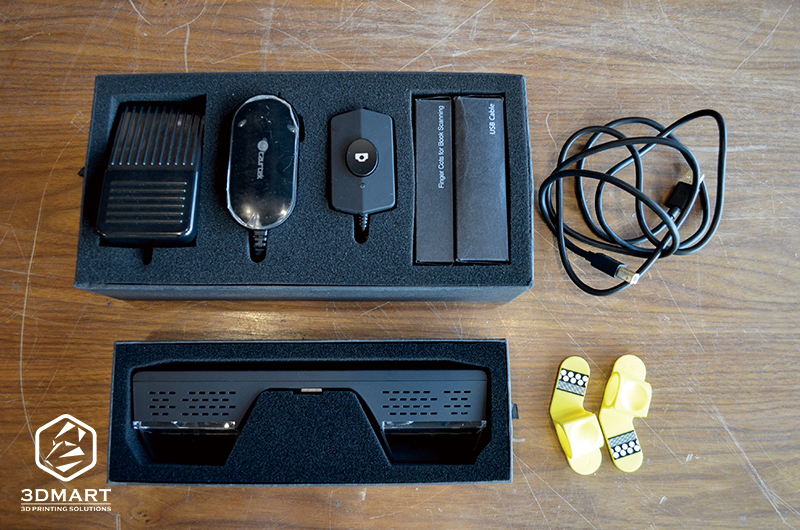
one, Contents:
2. Scan the hand button (along with wiring)
3. Scan the foot pedal (along with the wiring)
3. Special finger cots
4. Power cord
5. Computer connection cable
6. Fill light
two, Preparatory work
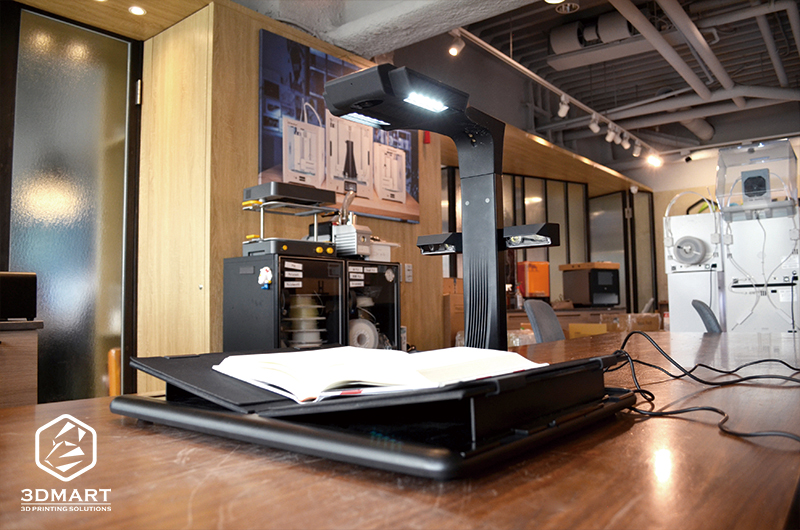
1. Assembly equipment: Simply combine the laser light pole, rigid document table, and fill light.
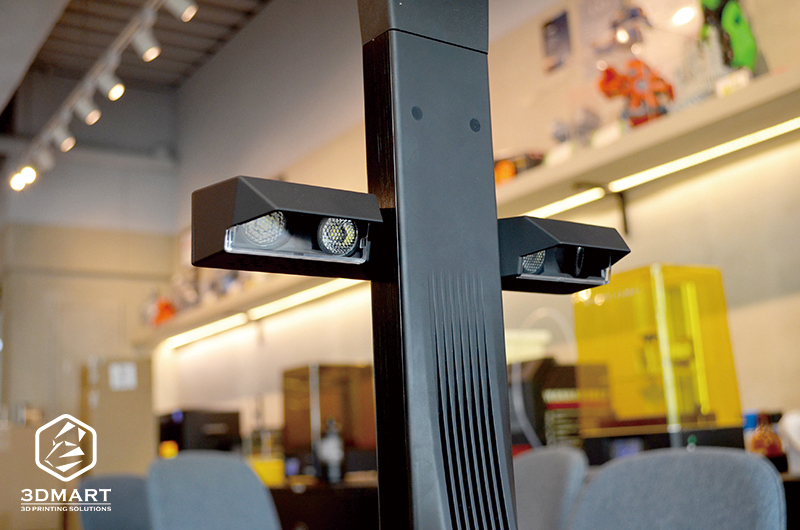
(Scanning documents, magazines, oil-paper, glossy books, etc. may cause glare. Please turn off the top light and turn on the side fill light.)
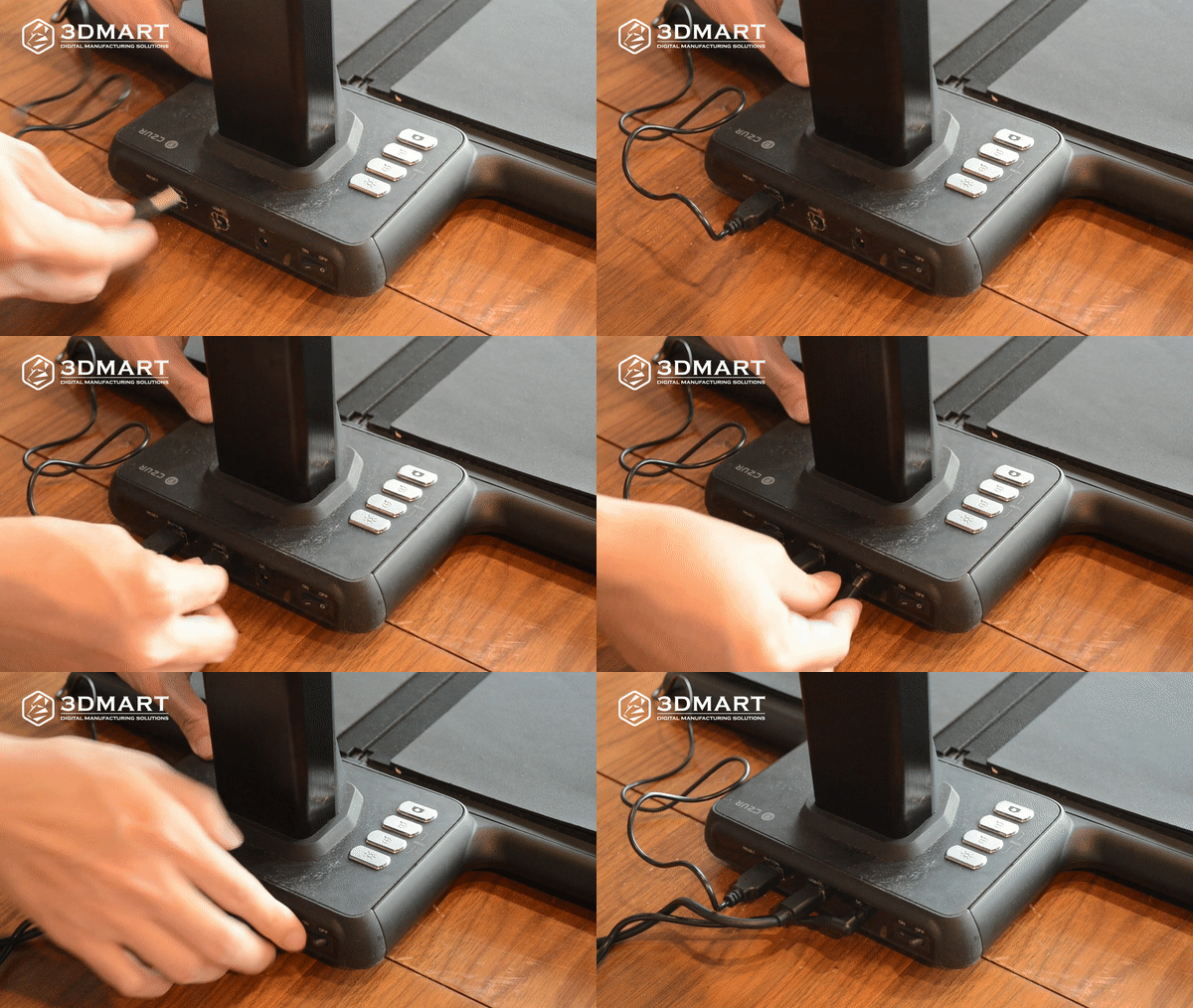
2. To start the device: Connect the hand button cable (or foot pedal cable, choose one), computer cable, and power cord to the interface at the back of the device, and turn on the switch at the back of the device base.
3. Book support: When scanning books of a certain thickness, the books and documents will have natural curvature on the left and right sides. You can use the "V-shaped book support" provided with the CZUR M3000 Pro to fix the position. When scanning flat single documents, simply place them within the scanning range.
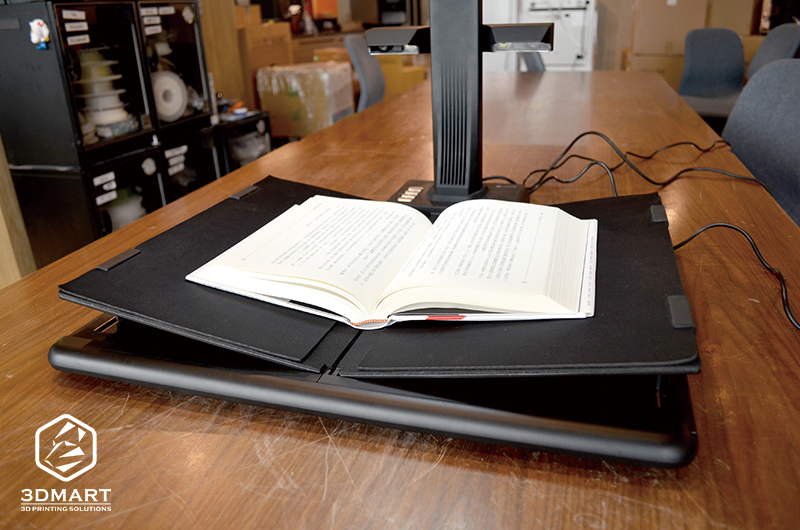
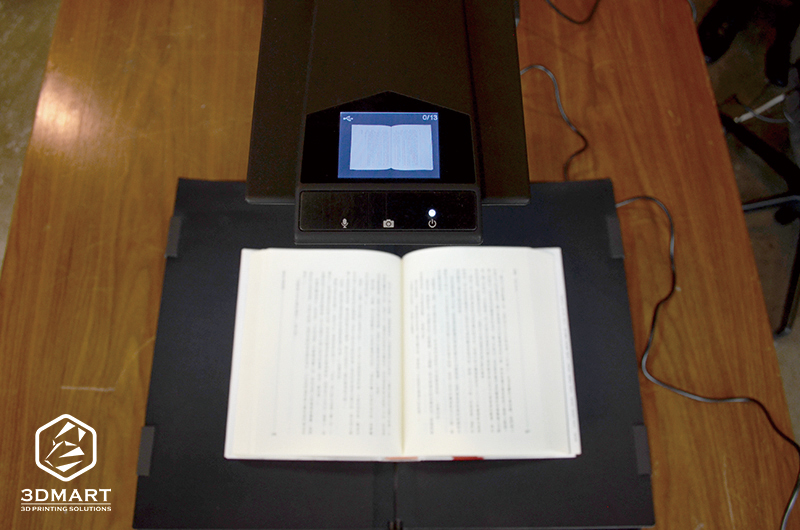
4. Placing books/documents for scanning: Place the book on the work platform and check on the M3000 LCD screen whether the black pad area covers the entire screen and ensure that there are no desktop objects or clutter around it to ensure the scanner's intelligent algorithm is working.
three, Using software
1. Install the CZUR Scanner software ( click to download ): The software is in Chinese, and its functions are intuitive and easy to understand. Beginners don't need to worry; just follow the instructions to get started easily.
2. Launch the software . Open the CZUR Scanner software on your computer, select "Scanner", and click "Start Scan" in the upper left corner. The system will automatically preview the scan screen in real time.
3. Color Modes <br> Color mode, black and white mode, grayscale mode, white paper stamp mode, ID card background mode, image mode, etc.
4. Paper Types <br> Supports flat paper, curved books, combining front and back pages into one, selection scanning, preserving original content without processing, and many other functions.
5. Select "Color Mode" and "Paper Processing Method" on the right, set them according to your needs, and click the icon in the lower right corner to start scanning.
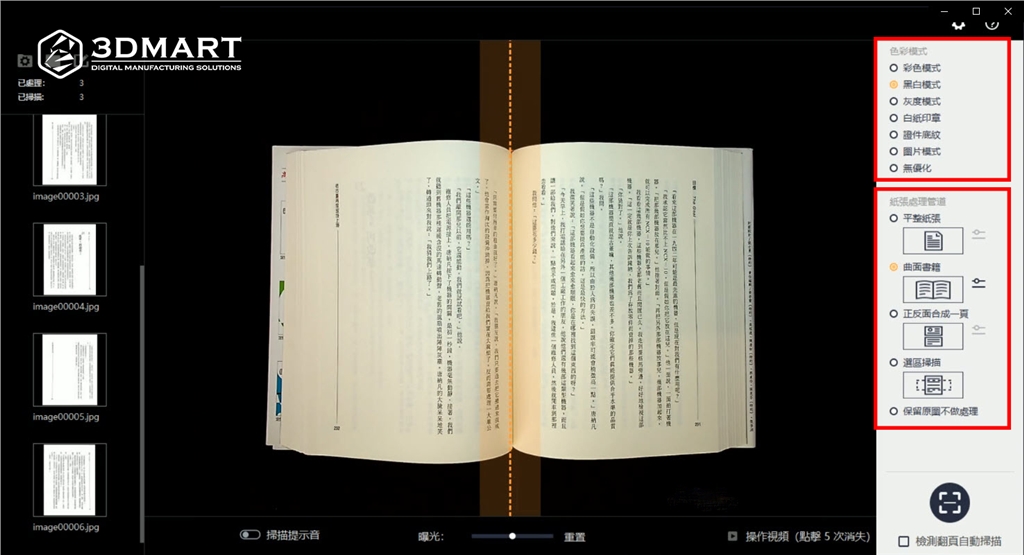
The CZUR series scanner features AI flattening technology. The software automatically displays the "left and right dividing lines of the book," aligns the book with the center line, and the system intelligently detects the actual curvature of the page, ultimately flattening the page to obtain a planar scanning result.
Four, Scanning operation method
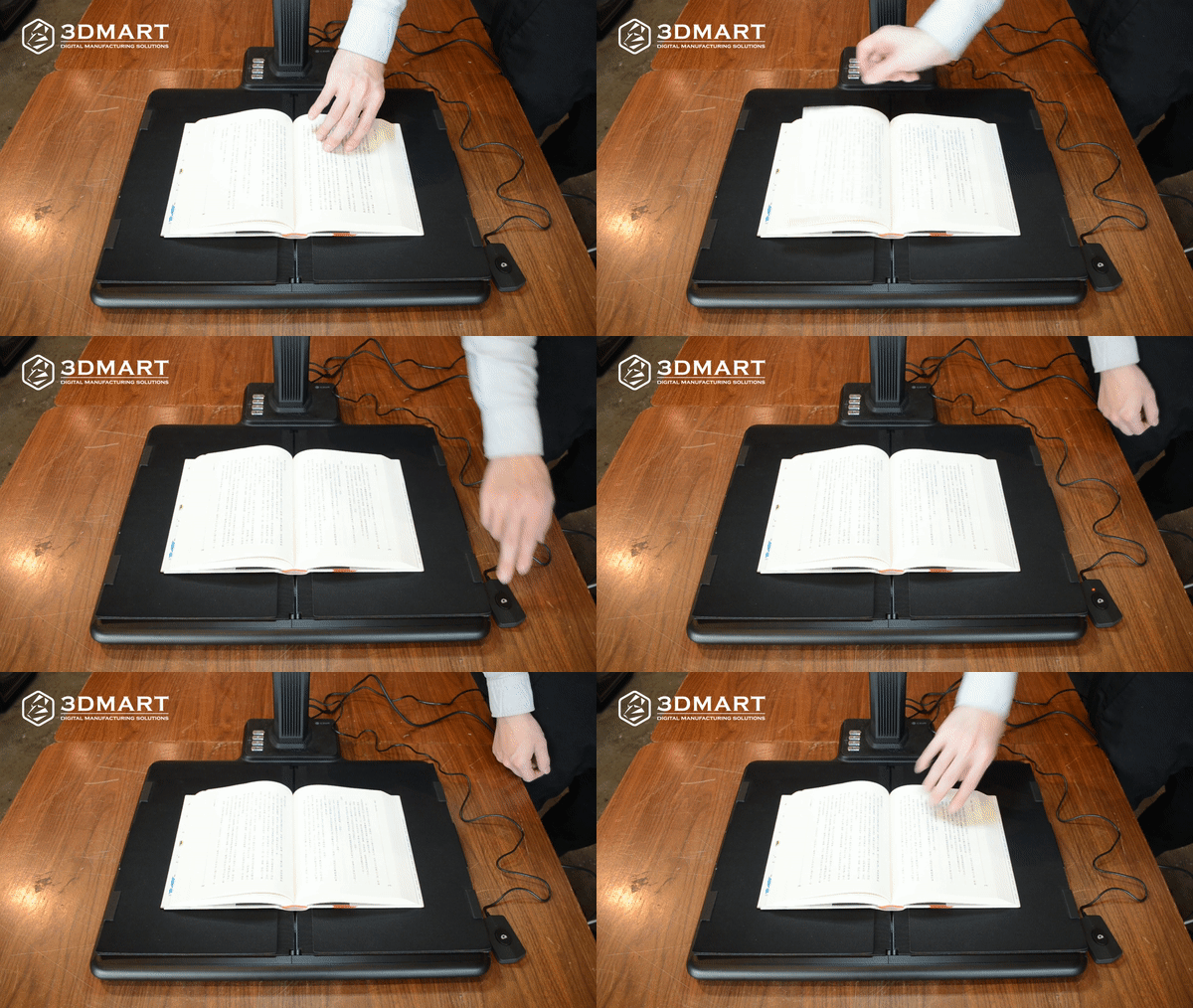
Taking a book as an example, after centering the document, simply flip to the desired page number, press the scan button/foot pedal/scan button in the software (choose one of the three), and the scan will be completed. On average, scanning two pages takes only 1.2 seconds. After each scan is completed, the software will automatically display the scan results.
five, Convert text file
The CZUR M3000 Pro features an AI intelligent system that uses OCR text recognition (supporting 187 languages) to directly convert scanned images into Word, Excel, PDF, TIFF, TXT, and other formats.
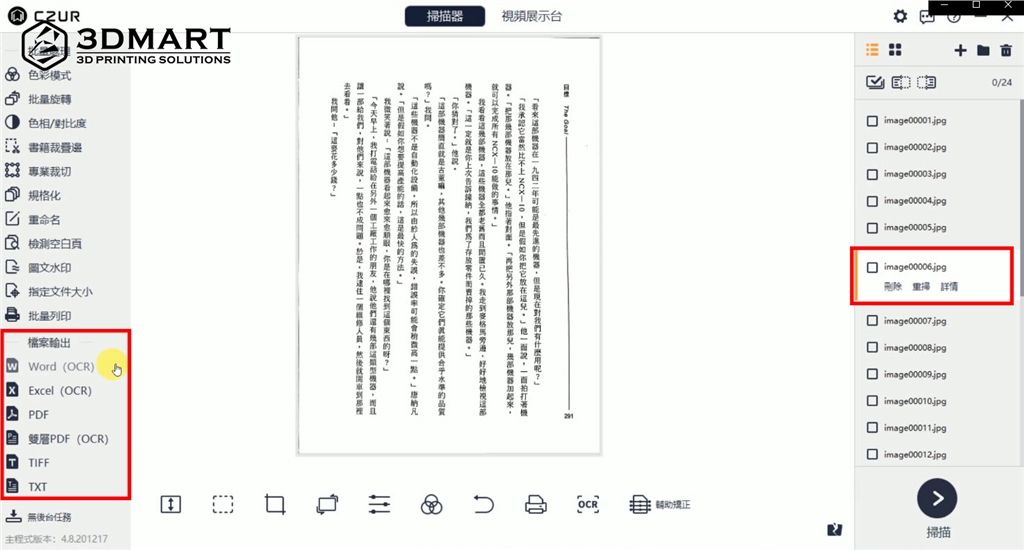
In the software, select the "Scanner" mode, select the scanned file, and in the function selection area on the left: File Output > Word (OCR), you can immediately get the text file of that page.
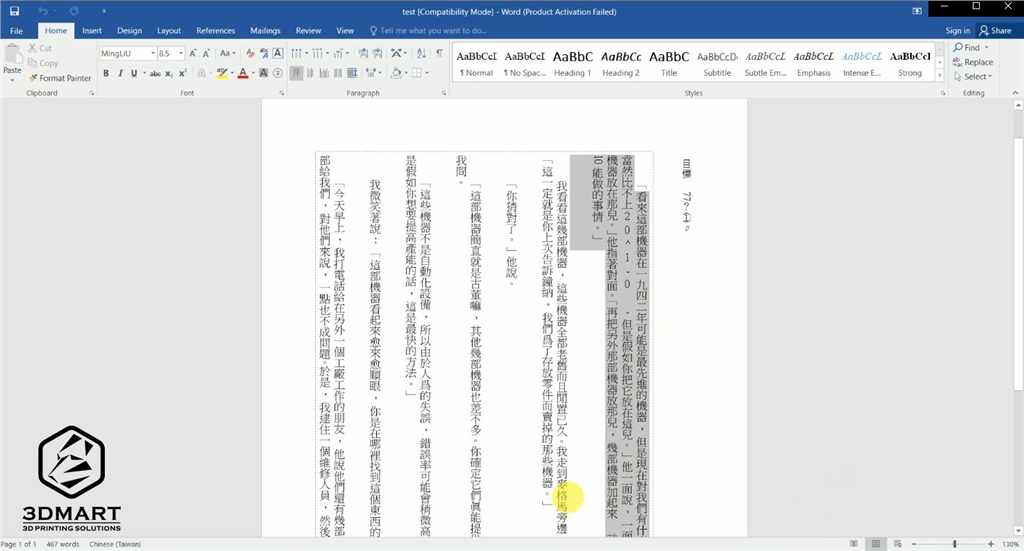
six, How to use finger sleeves
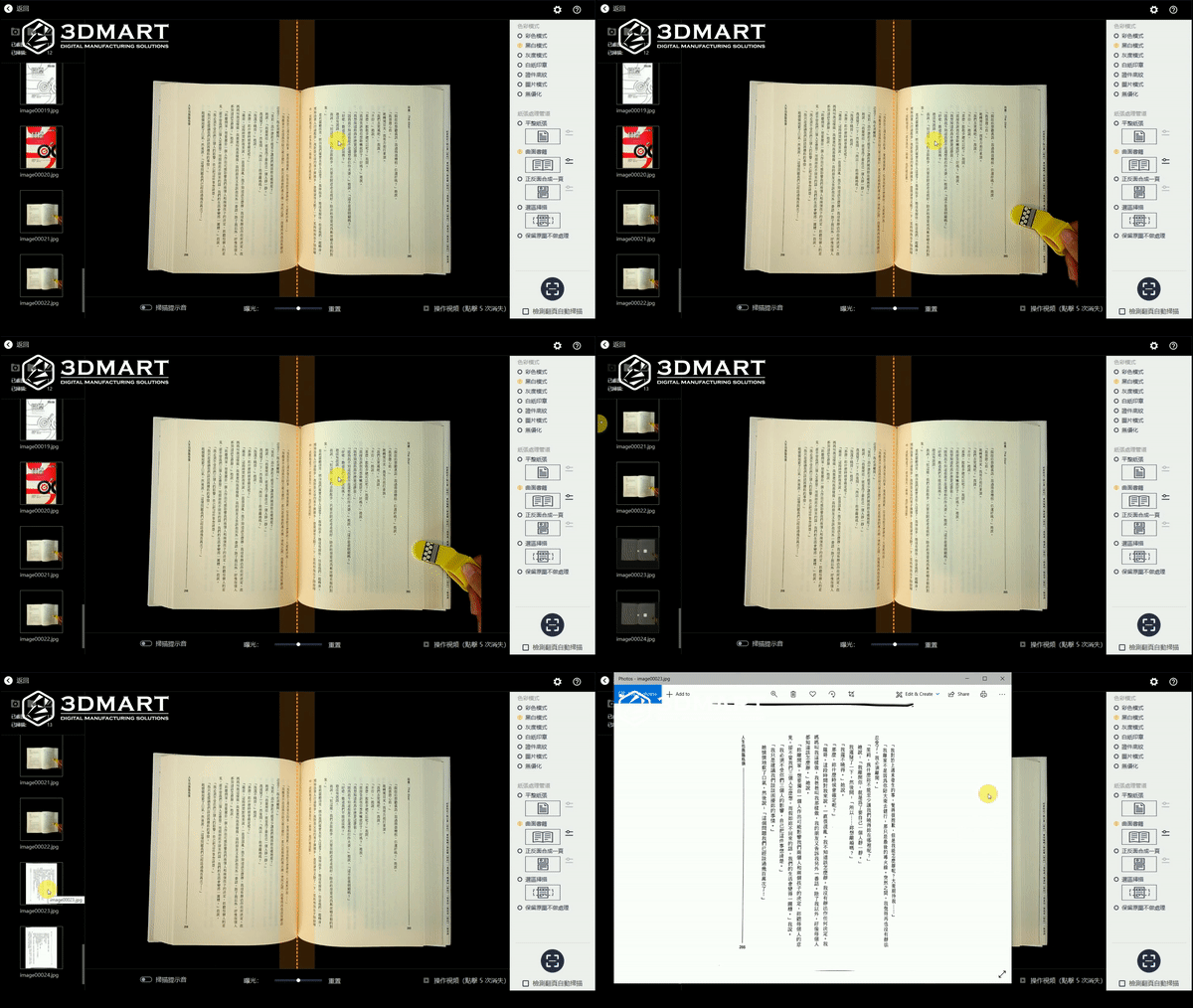
When scanning thick books such as dictionaries and encyclopedias, the page movement is affected by the curves of the pages, making it difficult to keep the pages still. Pressing your finger on the pages will be detected by the scanner. Using the yellow "special paper sleeve" to press on the edge of the book will automatically remove the finger sleeve without any post-processing.
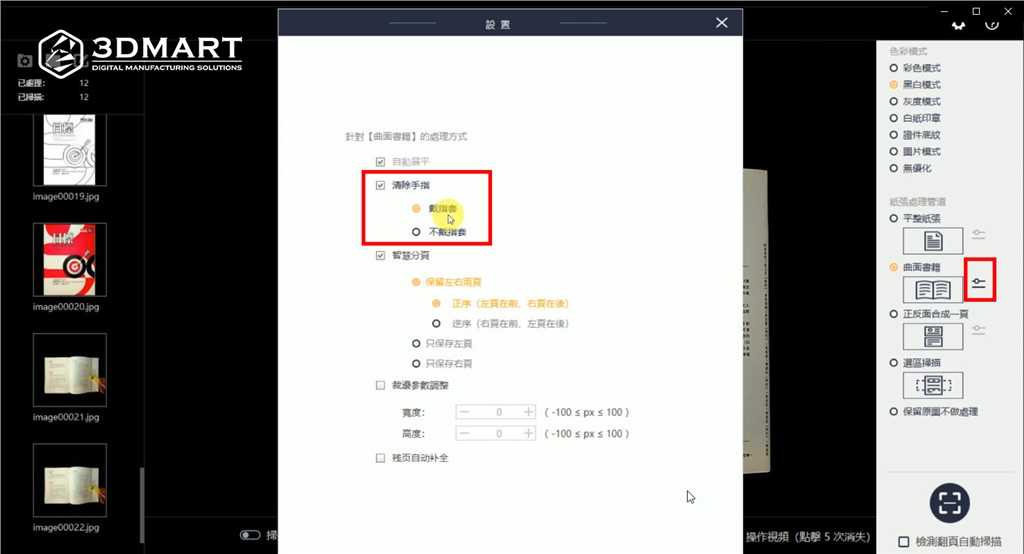
(Pre-scan settings: Paper settings > Remove fingers > Add paper cover)
The CZUR series upright scanners are invaluable tools for electronic archiving in law enforcement agencies (household registration documents, immigration records), archives and libraries (book binding, antiquities), and government units at all levels (documents of major events, election registration, complaint management). SanDiMa offers more than just 3D printing ; contact us now to learn more about the application cases of the CZUR series upright scanners . ( Click here to see: CZUR Scan: One-click conversion of text documents, double-page detection in a second! )
Follow our fan page to stay up-to-date with the latest news: https://www.facebook.com/3dmart.com.tw/