


[CNC Milling Machine] Snapmaker Rotary Axis Full Tutorial: Easily Carve a 1mm Hollow Spiral!
Effortlessly sculpt hollow CNC objects, creating incredibly detailed suspended spirals! A complete tutorial on the Snapmaker 2.0 rotary axis, including unboxing, hands-on testing, and software operation. Learn it right away with this video:
The Snapmaker 2.0 rotary axis unboxing includes three main parts: a three-jaw rotary spindle, a tailstock, and a base. It also includes three sets of test materials (for laser engraving and CNC milling engraving ) and a screw tool set. Simply tighten the screws to fix the rotary spindle and tailstock to the base, and then install it on the CNC work platform to complete the assembly!
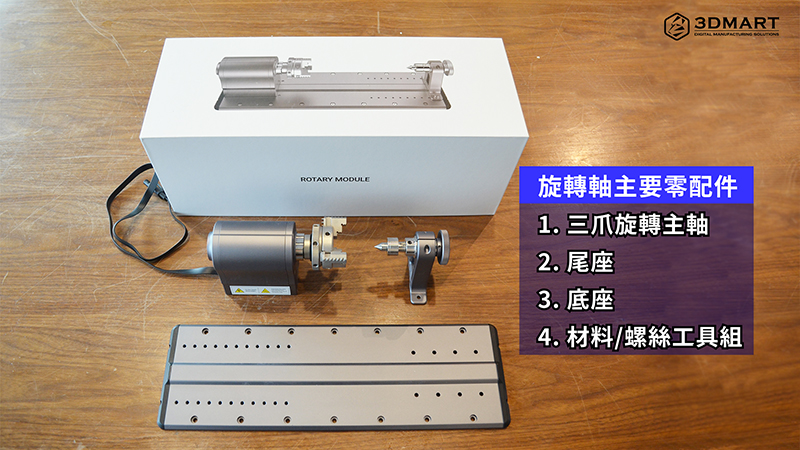
one, Correcting the rotating shaft
Before calibration, first lock the three-jaw bracket of the rotating spindle and fix the processing material on the frame (install the tailstock after calibration); update the Snapmaker firmware ( click here to update ), start the Snapmaker 2.0 A350 3D printer , and follow the instructions on the touch screen to easily complete the calibration. (During the calibration process, please be careful not to let your hands touch the sharp blades.)
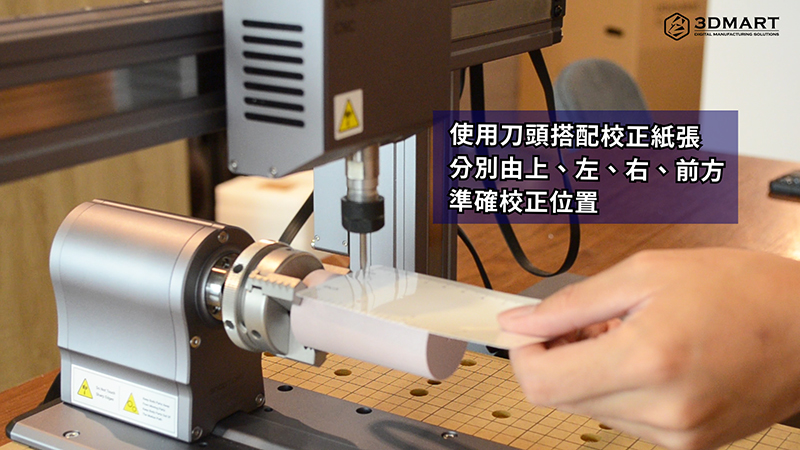
Calibration is mainly achieved by using the cutter head and calibration paper (included) to accurately calibrate the material from four directions: top, left, right, and front. You can control the direction of the cutter head in real time by clicking the arrow button on the screen. After calibration, install the rotating shaft tailstock, and the pre-processing of the equipment is complete!
two, Software operation ( click to download )
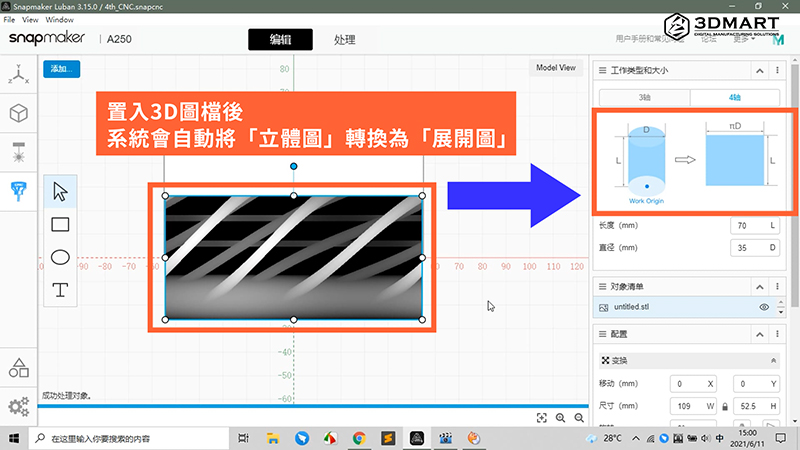
1. Insert File
After a 3D image file is imported into the software, the system will automatically convert the "3D stereoscopic image" into a "flat unfolded image" and then align the unfolded image with the material preview area.
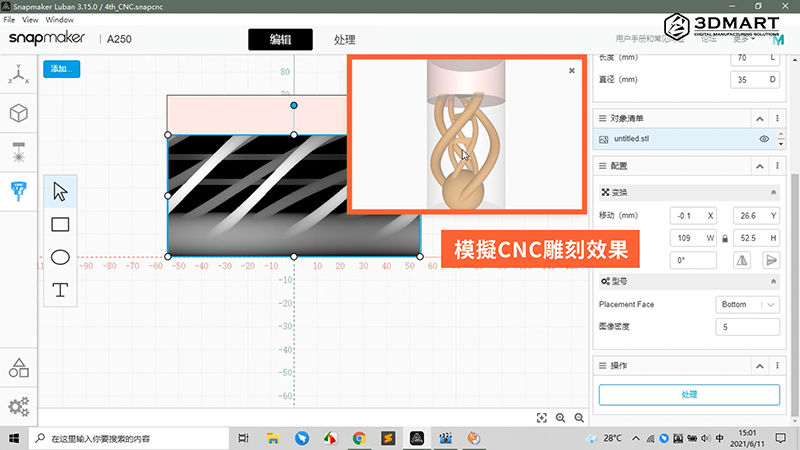
2. Preview the carving effect
Select "Model View" to preview the CNC engraving effect in the software before engraving.
3. Toolpath Setting
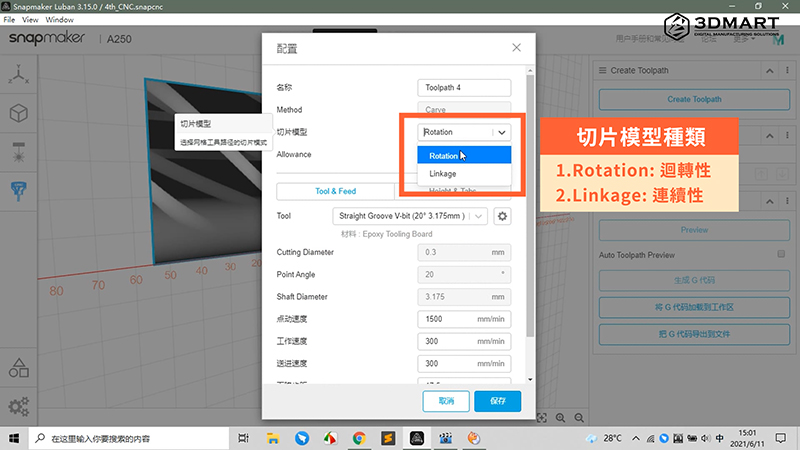
CNC-carved model slices mainly come in two types: Rotation and Linkage.
Rotation: The system's X-axis will be locked. The engraving path will first engrave the object's thickness. After engraving each layer, it will return to the starting point to begin engraving details and textures.
• Linkage (Continuous): The system's X-axis will operate synchronously, and the engraving path will be based on the model file shape. The cutter head will directly complete each shape of the object, including thickness and details, in one go.
4. Toolpath Simulation
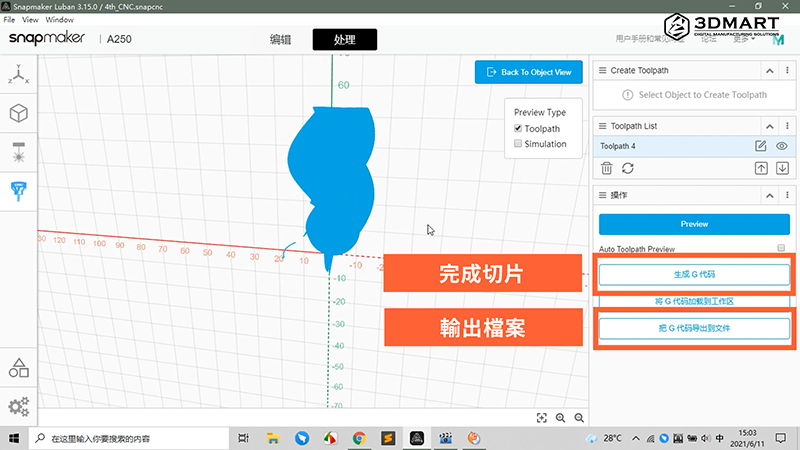
After completing the parameter settings, the system will automatically preview the CNC engraving path (blue area). You can confirm the file is correct before outputting. Then, upload the completed slice model to the Snapmaker 2.0 3-in-1 3D printer via USB to prepare for rotational engraving.
three, Start CNC rotary engraving
The object to be carved is a wooden cylinder with a diameter of 35mm and a length of 70mm. To avoid excessive dust dispersion and reduce noise during the carving process, it is recommended to use the Snapmaker enclosed cover to achieve the highest quality working environment.
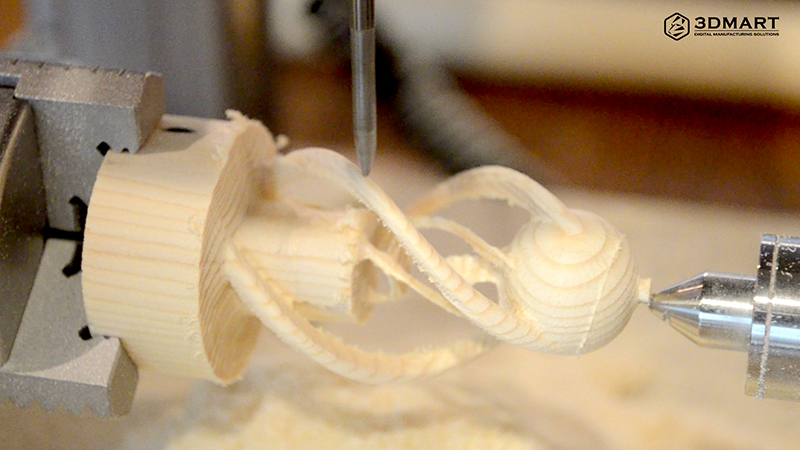
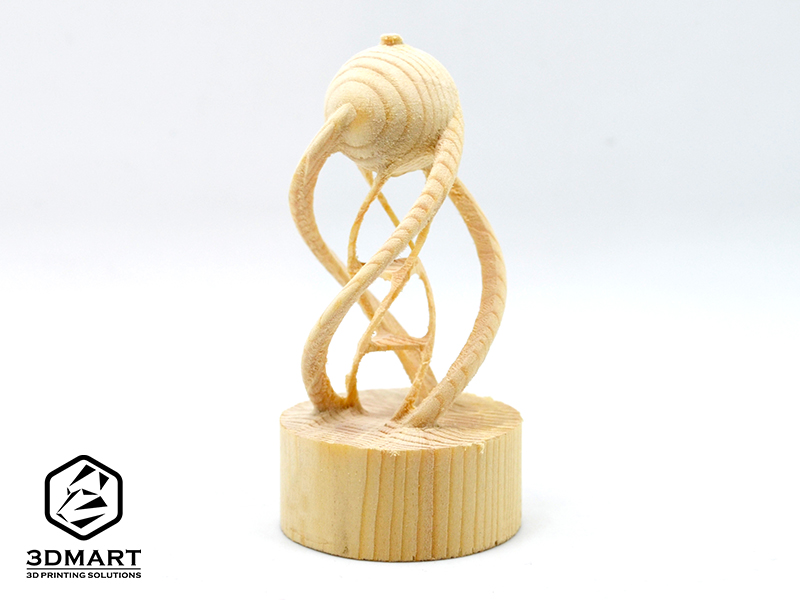
The spiral is complete! The hollow inner layer is only 1mm in diameter, resulting in incredibly precise and detailed carving. I think the shape looks remarkably like a chromosome! What do you think? Let your creativity run wild! Everyone can be a spiral sculptor, easily carving suspended shapes, even columnar ones!
Did you enjoy this sharing? The Snapmaker 2.0 series 3-in-1 3D printer ( click to see: Snapmaker A350 assembly and operation video tutorial in Chinese! ) features a rotary axis, providing a 4th axis for creative extension. Every designer can use this to unleash their creativity and realize every sudden idea. CNC milling and engraving are limitless! Snapmaker offers more than just 3D printing . Contact us now to learn more about the Snapmaker 2.0 rotary axis .
Follow our fan page to stay up-to-date with the latest news: https://www.facebook.com/3dmart.com.tw/