


[3D Printing] How to integrate the Bambu Lab 3D printer into your home assistant
Want to connect your Bambu Lab printer to Home Assistant?
Here's everything you need to know about how to do it!
Here's everything you need to know about how to do it!
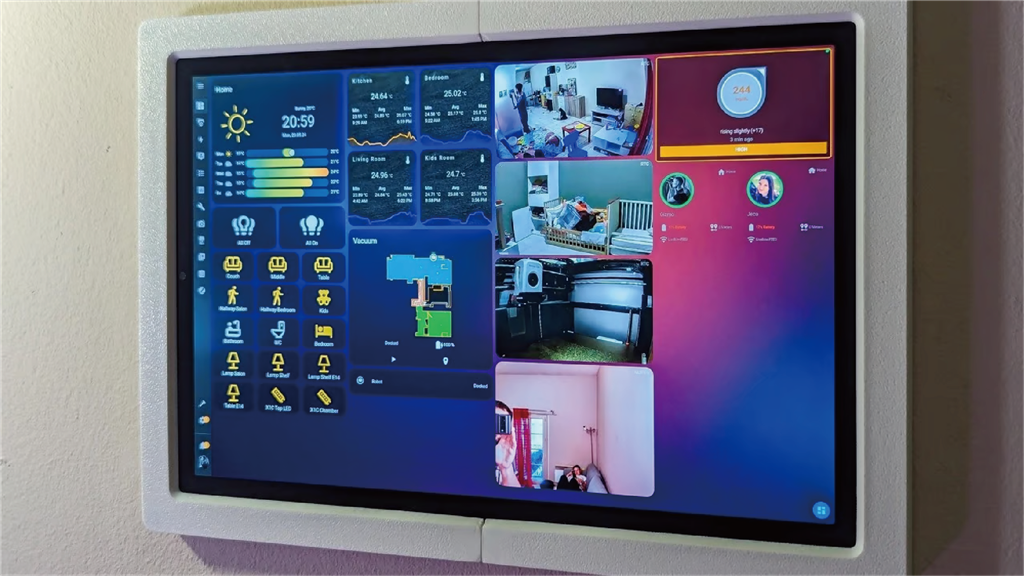
Given that 3D printers and smart home devices are now ubiquitous, it is not uncommon to have them under the same roof.
Bambu Lab and Home Assistant have become household names for their fast and reliable 3D printers and IoT or smart home control centers, respectively.
If you want to further simplify your 3D printing experience, it’s very easy to let the two talk and access your printer directly from Home Assistant.
Whether it's simply displaying a message in the center or performing a series of carefully designed operations and integrations, both are a perfect combination.
In this article, we will introduce what Bambu Lab printers and Home Assistant are, why you might want to connect them, and how to do so.
If you haven't heard of them yet, Bambu Lab manufactures ultra-fast and ultra-popular 3D printers for the modern market, including the top-of-the-line X1E , the fast and plug-and-play X1C , the compact and easy-to-use A1 and A1 Mini , and the more affordable yet still worthwhile P1S .
In recent years, these printers have become very popular and are a common sight in the homes of makers, tinkerers, and others.
Bambu's printers already include a wealth of networking and out-of-the-box connectivity features designed for use within Bambu's cloud ecosystem, which also provides a solid foundation for the use of IoT platforms such as home assistants.
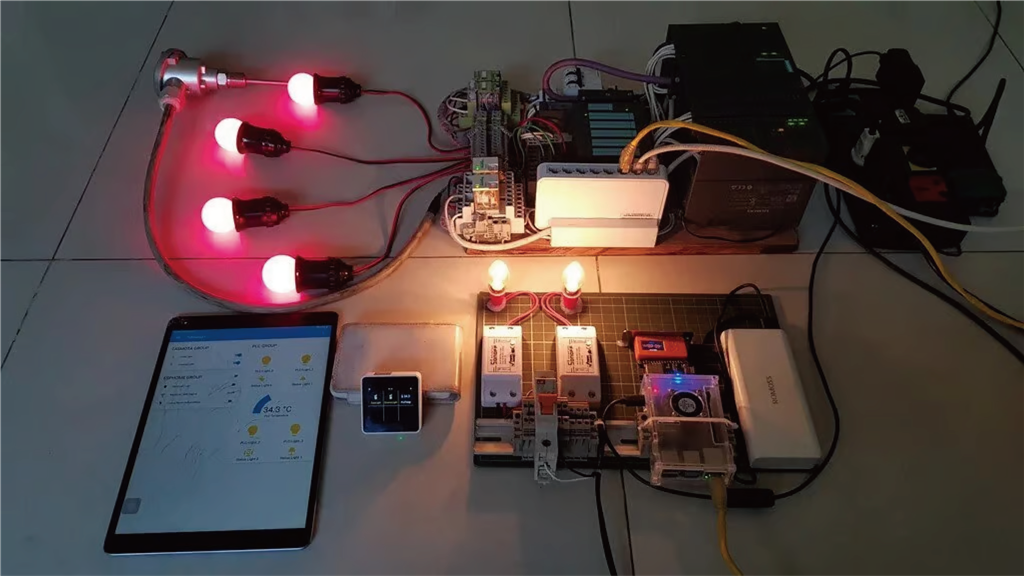
Home Assistant is a free and open-source IoT software that acts as a central hub for smart home devices on a local network.
This contrasts sharply with the closed approach of many IoT and smart home systems that are based in the cloud, where home assistants typically run directly on a small computer such as a Raspberry Pi.
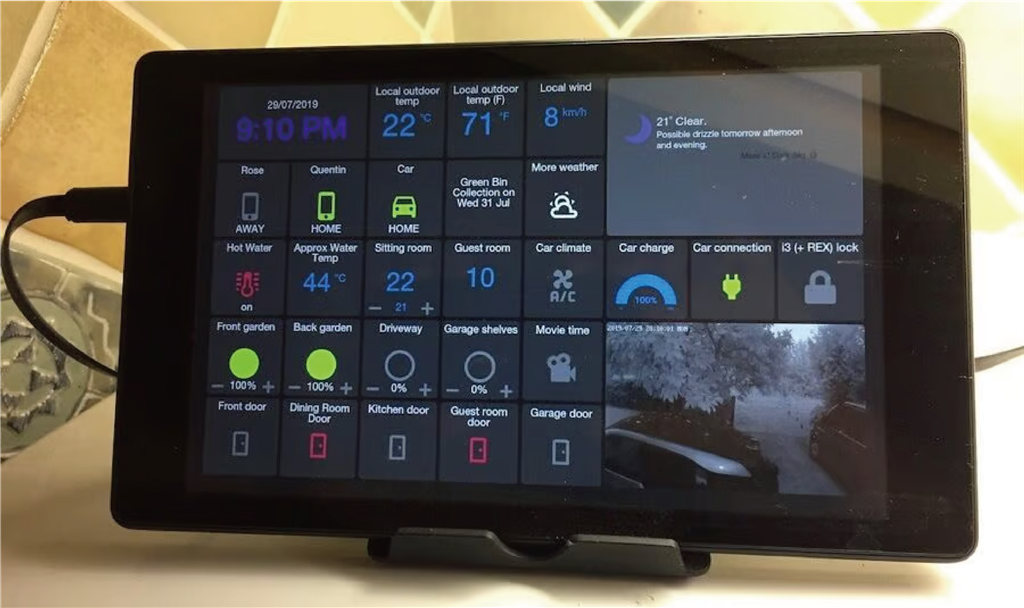
It allows you to manage various devices, such as cameras, speakers, lights, and of course, 3D printers!
Let's take a closer look at why connecting these two settings is useful.
Why do this?
Connecting the Bambu printer to Home Assistant means you can easily monitor and control the device from the central dashboard!
Through this integration, you can monitor the vast amounts of data collected by the printer.
This includes fan speed, temperature, current print statistics, AMS information, real-time printer camera view, and more!
Beyond simply viewing data, you can also command the printer to perform certain tasks.
You can pause, resume, or stop the current print job, toggle any indicator lights (if configured), and view printer diagnostic information... and the list goes on.
One of the most popular features of Home Assistant is the ability to add automation features across different devices.
For example, your printer can notify you that it needs more cable by changing the color of the room lights, or it can automatically start or stop printing based on the readings of a smart humidity sensor—the possibilities are endless!
What do you need to do?
There are several ways to connect a Bambu Lab printer to Home Assistant, such as using MQTT/NodeRed.
This method connects the printer and the Home Assistant hub via a traditional MQTT connection on the local network.
However, in this paper, we will focus on Greg Hesp's ha-bambulab integration because it is versatile and widely supported.
It allows for selective connectivity through Bambu's existing cloud ecosystem and features a simpler setup process, while retaining easy access to large amounts of data and print integration.
To connect the Bambu Lab 3D printer to Home Assistant via ha-bambulab integration, you will need:
1. Bambu Lab 3D printer (connected to the same Wi-Fi network as the Home Assistant settings).
2. Home Assistant
Please note that settings may vary slightly depending on your printer model. For example, the P1 and A1 series require a local connection to use live camera feeds in Home Assistant (although a cloud connection can be used to supplement this if desired).
The X1 series printers also require enabling an additional setting (LAN mode real-time view) to achieve the above functions.

Install HACS
First, you need Home Assistant Community Store (HACS) to function properly.
You can find a guide on how to install HACS here .
In short, you install HACS into the Home Assistant hub, and from there you can easily access a large number of custom integrations and elements created by the community for Home Assistant.
Install ha-bambulab
Once HACS is set up, you can install the actual integration! A simplified method is to access this link from any device on the same network as your Home Assistant installation.
This will install and integrate automatically. However, if this doesn't work, you can try doing it manually:
1. Go to HACS in Home Assistant, click the three dots in the upper right corner, and then select the "Custom Library" option.
2. Add the desired custom repository in the "Integration" category by entering "greghesp/ha-bambulab" in the "Repository" box and selecting "Integration" under "Category".
3. After saving, you should see the integration at the top of the HACS main menu, properly named "Bambu Lab"; download and install it. (If you don't see it, try searching for "Bambu Lab" in the search box near the top.)
4. Although not required, it is recommended to restart Home Assistant at this time to ensure that integration can detect your printer in the following steps.
Add your printer
1. In the Home Assistant settings, access the "Device and Services" section.
2. Click the "Add Integration" button to search for and add the newly installed integration. You can find the integration again under the name "Bambu Lab".
3. As mentioned earlier, you should now be able to choose between cloud and local connections. Choose whichever you prefer.
If needed, please provide your Bambu Lab account login details.
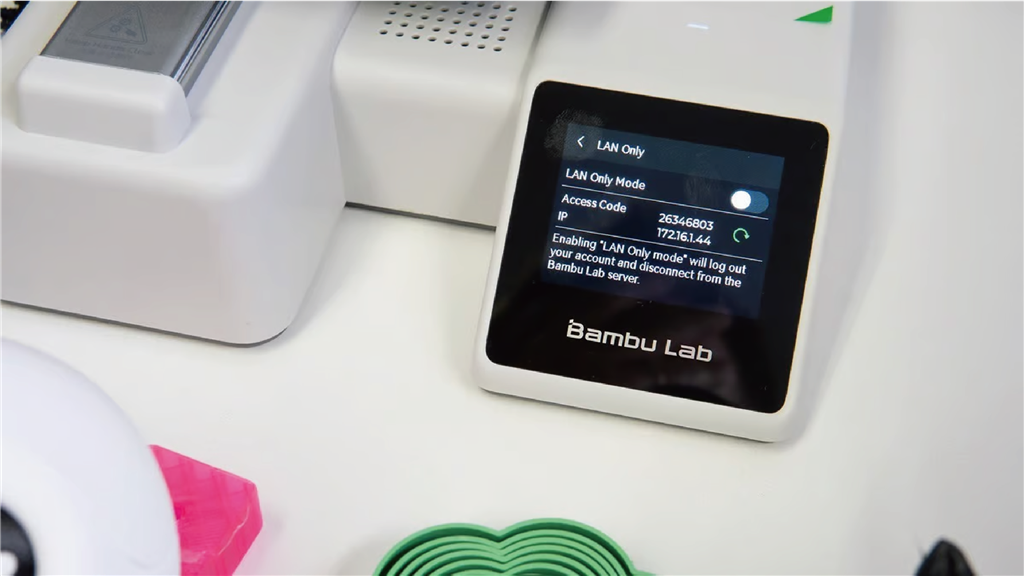
If you choose local connection (or cloud connection), you will need to provide the printer's IP address and access code.
Finding these is very similar to setting up Bambu Studio's LAN-Only mode .

Integrating the Bambu printer into Home Assistant is cool, but it's not very useful without a way to view information or interact with the printer.
Fortunately, you can easily create beautiful and powerful custom dashboards to display printer data!
Many users have shared their dashboard settings, which you can use for inspiration, or you can create your own dashboard settings entirely.
WolfwithSword lets you create your own custom YAML to make stylish dashboards for your printer.
If you prefer automation, then there are many possibilities in this section!
You can set up different automations, trigger many possible events, and command other devices on the Home Assistant network, such as changing the color of the LEDs around the printer based on the printer's status.
Automation can be easily added to the integration configuration, located in "Devices and Services > Bambu Lab".
Now, your Home Assistant should be able to communicate with your Bamnu Lab printer!
Add even more possibilities to your printing work with this awesome setup!
Want to learn more about Bambu Lab 's products?
-Contact Us-
SanDiMa offers more than just 3D printing ; we provide three major OEM services: " 3D Printing Manufacturing ," " 3D Scanning Services ," and " Spatial 3D Scanning Services "!
Follow our fan page and stay up-to-date with the latest news:
Facebook | Instagram